

- Senior Writer
- Author
 3732
Ievgen Chemborysov
Ievgen Chemborysov
Author
3732
Ievgen Chemborysov
Ievgen Chemborysov
Author
 3732
3732

Python is becoming a widely used programming language among both newcomers and seasoned developers. Known for its flexibility and wide range of applications, Python is commonly used in tasks like automation, scripting, data science, machine learning, and server-side development.
This guide will walk you through the process of how to install Python on Windows 10 using the official Python installer. In addition, we will also show you how to download Python on Windows system easily. Let’s get started!
To install Python on Windows 10, you need to perform the following steps:
Visit the official Python Downloads page for Windows. Now, look for a reliable release of Python 3—Python version 3.13.5 is the currently available version, while writing this article and also works well.
Windows installer (64-bit) if your system is 64-bit
Windows installer (32-bit) if you're using a 32-bit version
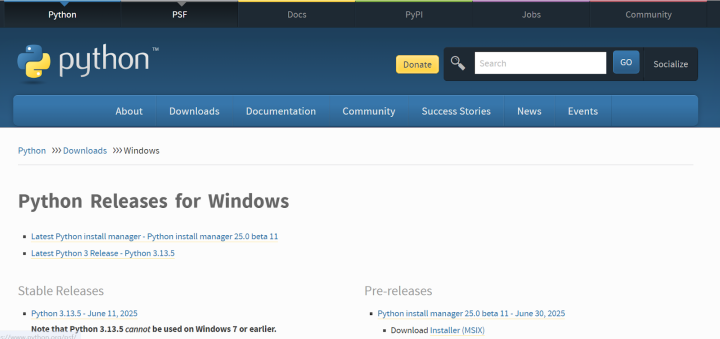
Once the installer file has finished downloading, double-click it, e.g python-3.10.10-amd64.exe, to start the installation process.
On the setup screen, check the box labelled “Installlauncher for all users”—this enables the Python launcher for all users on the computer. Also, check the option “Add python.exe to PATH” so you can run Python directly from the Command Prompt.
If you're new to Python and want a quick setup using the recommended settings, simply click "Install Now" to proceed with the default installation. After that, you can verify the Python installation on your system.
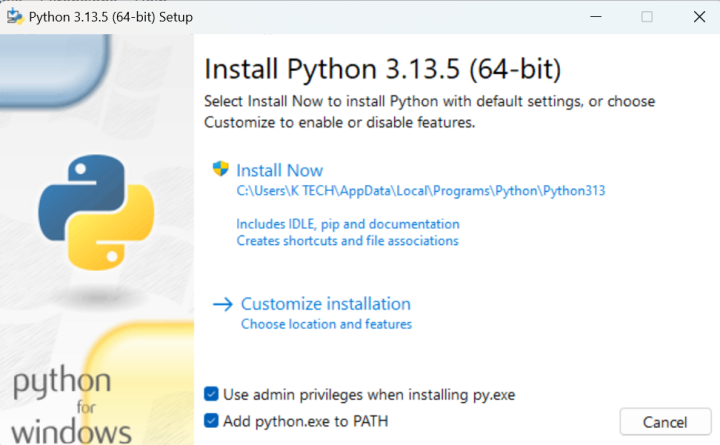
If you'd like to explore additional settings or enable advanced options, choose "Customize installation" instead.
The customization menu offers Optional Features, which include commonly used tools and libraries. It's safe to install all of them, even if you don't need them right away.
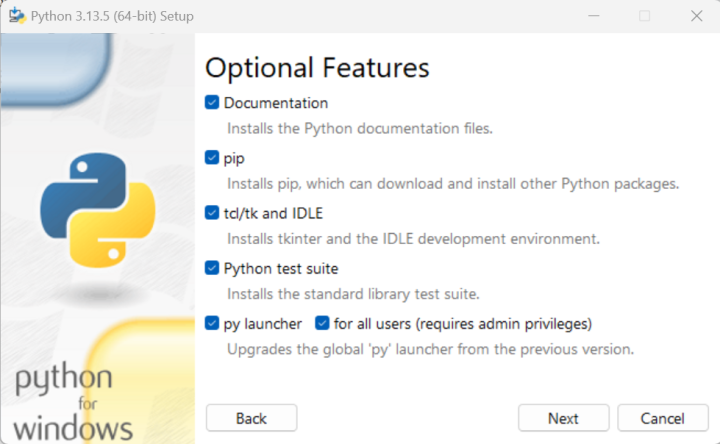
You can choose to enable any of the following features:
After selecting your preferred options, click Next to continue. You’ll now see the Advanced Options screen.
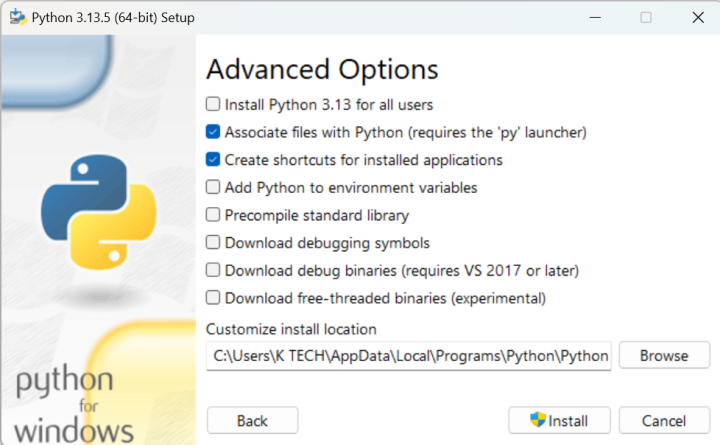
Choose the settings that best fit your needs:
Before you proceed, take note of the folder where Python will be installed—you may need it later.
Click Install to begin the process. Once done, you’ll see a “Setup was successful” message confirming the installation.
If you didn’t check “Add Python to environment variables” during setup, you can still add it manually:
1. Find the Python install path:
If installed for all users:
C:\Program Files\Python313
If installed for a single user:
C:\Users\<YourName>\AppData\Local\Programs\Python\Python313
2. Open Environment Settings:
Search for “advanced system settings” in the Start menu.
Click “View advanced system settings”, then go to the Advanced tab.
Click “Environment Variables”.
3. Edit the Path variable:
Under System Variables (if installed for all users) or User Variables (for single-user install), select Path and click Edit.
Click New, add the Python install path, and confirm with OK.
This lets you run Python from any command prompt window.
To make sure Python was installed correctly, you can check using the Command Prompt or the IDLE app (if installed).
Using Command Prompt:
Open the Start menu, type cmd, and launch Command Prompt. Type the following command:
Python –version📋
You should see something like:

Using IDLE:📋
In the Start menu, type Python, then click on IDLE (Python 3.12 64-bit) or whichever version you installed. This opens a Python shell window, confirming the installation.
If either method shows the version number, Python is successfully installed on your system.
We demonstrated in the above article how to install Python on Windows 10. I hope you're now ready to dive into programming. You can begin by writing your first Python script and continue exploring the language through beginner-friendly tutorials and hands-on practice.
Is your business outgrowing shared hosting or VPS? Upgrade to the raw power of a dedicated server from BlueServers.com!
Our dedicated servers provide 100% exclusive resources, customizable hardware, and unlimited traffic—ideal for high-performance applications. With reliable uptime and full root access, you stay in control of demanding workloads and traffic-heavy applications.



Start for free and unlock high-performance infrastructure with instant setup.
Your opinion helps us build a better service.